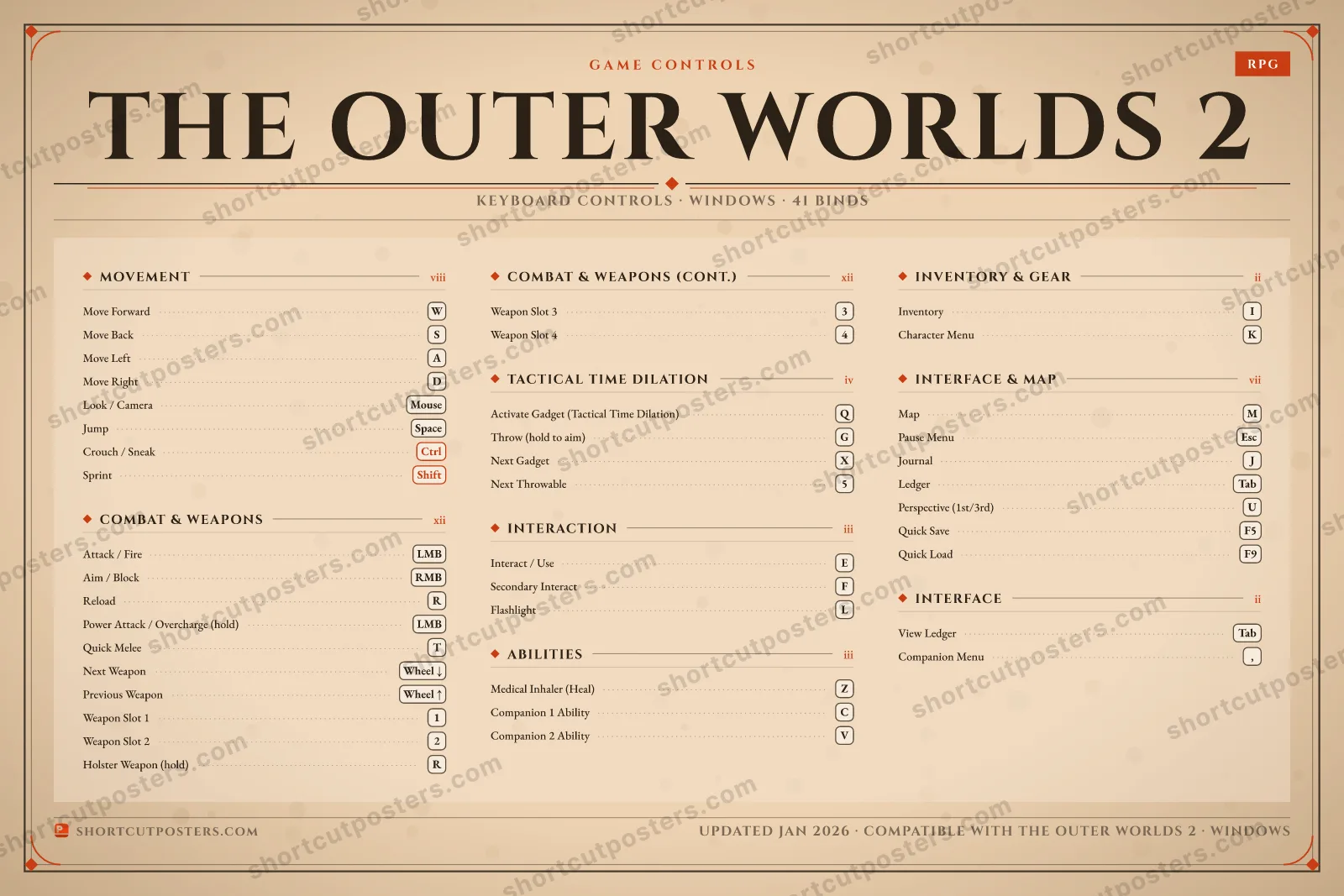
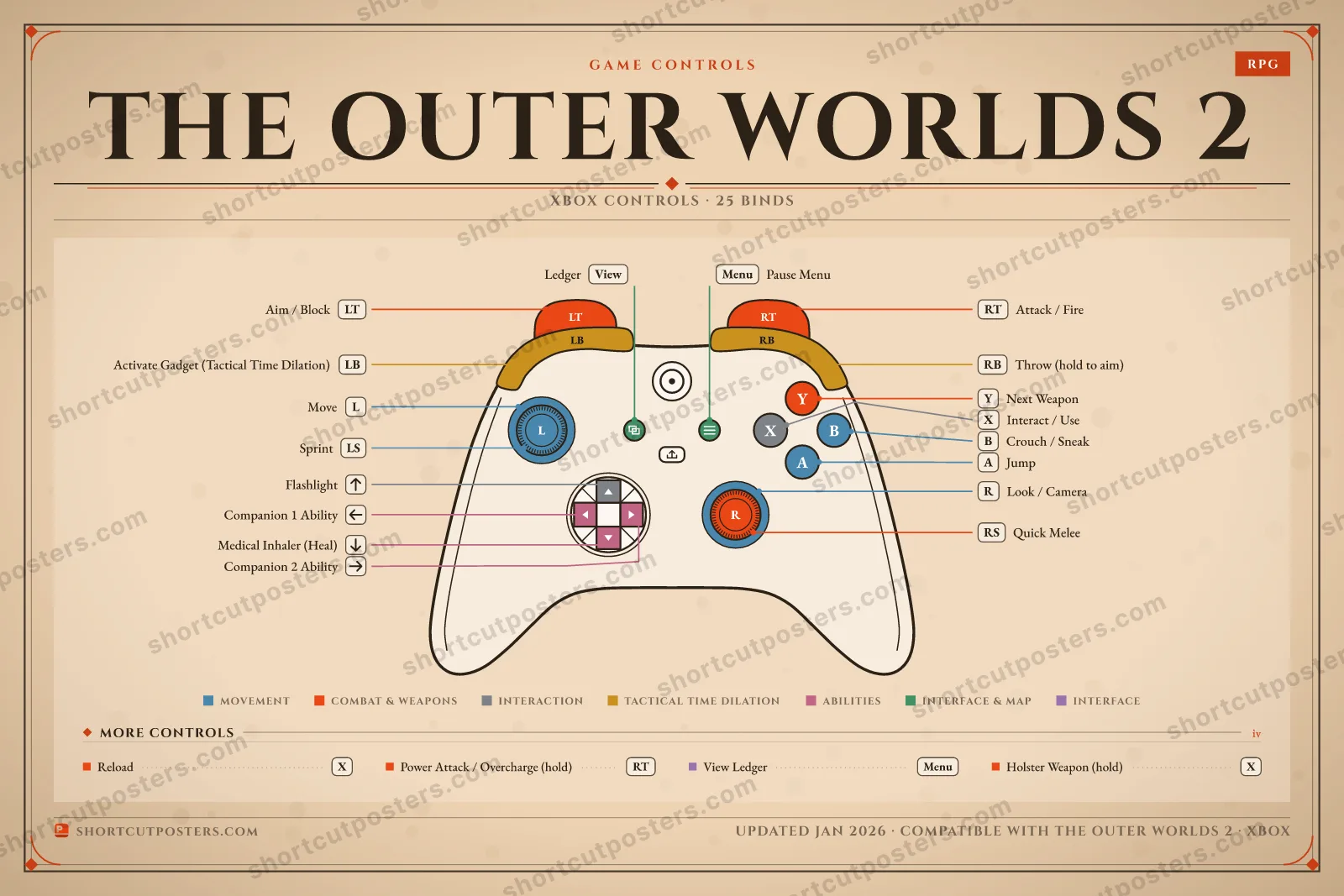
The Outer Worlds 2 is Obsidian's first-person action-RPG sequel set in the Halcyon-adjacent Arcadia colony, mixing gunplay, gadgets, and dialogue-driven roleplay. These default keyboard, mouse, and Xbox controller bindings cover movement, weapons, the Tactical Time Dilation gadget, companion abilities, gear, and menus.
41 default keybinds across 8
categories. Most can be reassigned in The Outer Worlds 2's control
settings.
Switch to Gamepad to see Xbox, PlayStation and Steam Deck buttons side by side.
Unofficial reference. ShortcutPosters is not affiliated with, endorsed by, or
sponsored by The Outer Worlds 2. All product names, logos, and trademarks are property of
their respective owners. See our licensing & trademark
notice.
Put it on your wall
The Outer Worlds 2, framed. Every bind, razor-sharp.
Print-ready 36×24″ at 300 DPI. No watermark. Hang it, gift it, or turn it into a desk mat.
One file: the keyboard poster and the Xbox, PlayStation and Steam Deck controller posters.
What are the default controls for The Outer Worlds 2?
The Outer Worlds 2, a rpg game, uses 41 default keybinds across 8 categories — on keyboard and controller. The complete, up-to-date list is free to read on this page.
Can you remap The Outer Worlds 2 controls?
Yes. These are the game's default bindings — nearly all of them can be reassigned from The Outer Worlds 2's in-game control or key-binding settings.
Does The Outer Worlds 2 support a controller?
Yes — The Outer Worlds 2 has full gamepad support. The Xbox, PlayStation and Steam Deck button maps are shown on this page alongside the keyboard controls.
Which platforms do these The Outer Worlds 2 controls cover?
These keyboard controls apply on Windows. The Outer Worlds 2 also released on Xbox and PlayStation, and this page carries those controller bindings too. Most bindings are identical across platforms unless noted.
Is this an official The Outer Worlds 2 resource?
No. This is an unofficial reference and is not affiliated with or endorsed by The Outer Worlds 2 or its publisher. All trademarks belong to their respective owners.